
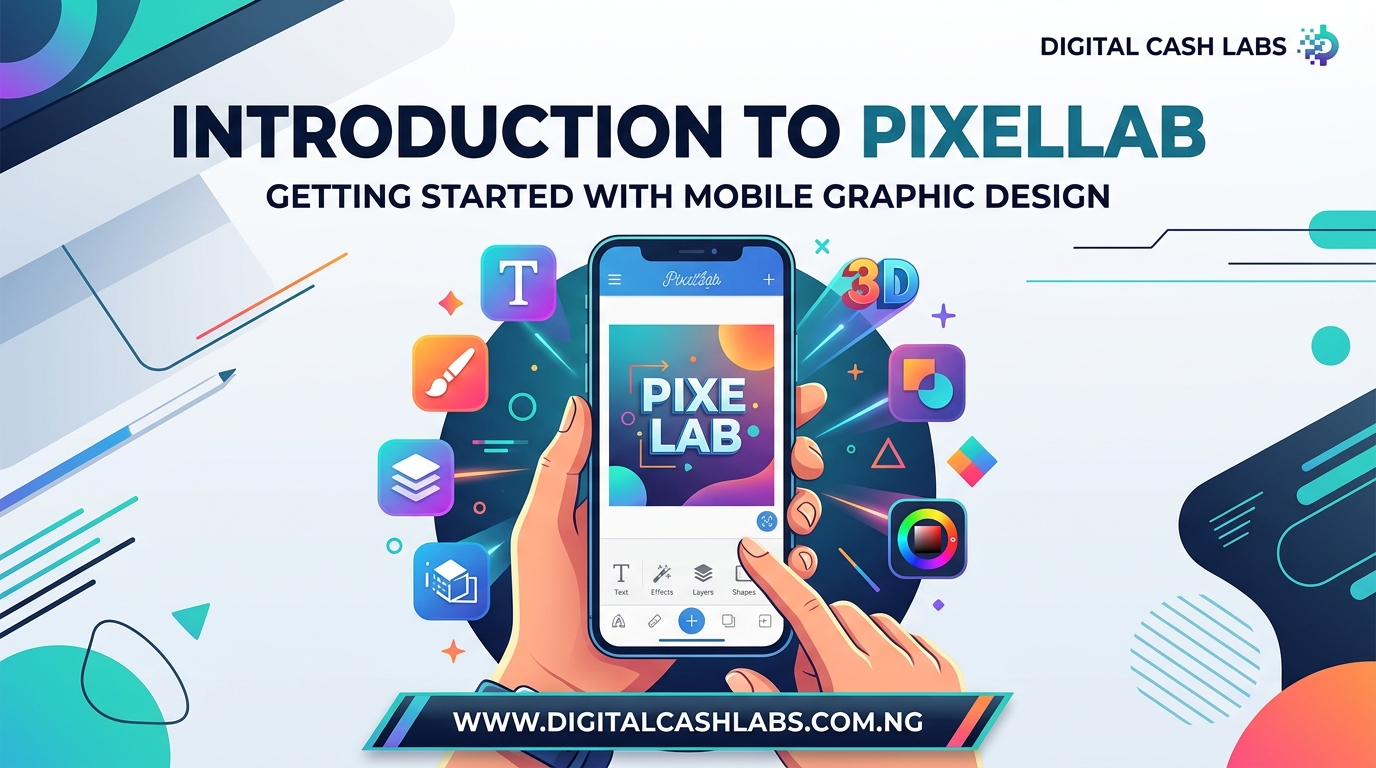
Introduction to PixelLab: The Mobile App for Bold Text and Graphic Design
Introduction to PixelLab
If you’ve ever seen those bold, 3D-looking text designs on Instagram thumbnails, posters, or flyers and wondered what tool creators use to make them right from their phone, there’s a good chance the answer is PixelLab. It’s a mobile app built specifically around text effects, layering, and quick graphic design — no computer required.
This guide introduces you to what PixelLab actually does and walks through its core tools, so you know exactly where to start once you open the app for the first time.
What You Need
- A smartphone or tablet (Android or iOS)
- The PixelLab app, downloaded from the Google Play Store or Apple App Store
- An image or background to design on, if you’re following along with a specific project
What Is PixelLab?
PixelLab is a mobile graphic design and text-editing app designed around ease of use — it’s built for quick, on-the-go design work rather than complex desktop-level editing. It’s especially popular for creating bold text designs, 3D typography, logos, posters, and social media graphics, all from a phone.
Core Tool 1: Text and Text Effects
Text is really the heart of PixelLab. You can add multiple text layers and customize each one individually — font, size, color, spacing, and rotation. Beyond basic styling, PixelLab includes a large set of built-in text effects: shadow, inner shadow, stroke (outline), background fill, reflection, emboss, and curved text, among others. Stacking a few of these effects together is usually how you get those bold, eye-catching text designs.
Core Tool 2: 3D Text
One of PixelLab’s standout features is its 3D text tool, which lets you turn flat text into text with real depth, angle, and lighting — the kind commonly used for thumbnails, posters, and logos that need to stand out. You can adjust the extrusion depth, rotation angle, and lighting direction to get the look you want.
Core Tool 3: Backgrounds and Image Import
You can start a design from a solid color, a built-in background, or your own uploaded photo. Importing your own image is the usual starting point if you’re designing over an existing photo — for a poster, thumbnail, or branded graphic.
Core Tool 4: Stickers, Shapes, and Drawing
PixelLab includes a library of stickers, emojis, and basic shapes you can drop into a design, along with a freehand drawing/pen tool for custom touches. These are useful for adding small decorative details without needing outside images.
Core Tool 5: Background Removal
PixelLab includes a background removal tool, letting you cut a subject out of a photo directly within the app — handy for placing a person or object onto a different background or design without needing a separate tool.
Core Tool 6: Layers
Every text, image, sticker, or shape you add sits on its own layer. Understanding layers early on is important — it’s how you control what sits in front of or behind other elements, and how you can edit one piece of a design without disturbing the rest.
Core Tool 7: Perspective and Warp Editing
PixelLab also includes a perspective/warp tool, which lets you bend text or images to follow the angle of a surface in a photo — useful for tasks like placing a logo realistically onto a box, wall, or screen within an image.
Exporting Your Design
Once your design is finished, PixelLab lets you export or share it directly in your chosen format and resolution, with quick-share options for social platforms like Instagram and Facebook built in.
PixelLab has a lot packed into it, but you really don’t need to learn every tool before you start — pick one project (a text design, a simple poster) and get comfortable with text effects and layers first. Everything else builds on that foundation. If you want to keep building your design skills beyond PixelLab, our Graphics, Design & Creativity section has more tutorials to explore.
How to Fix Common Problems
Text effects look messy or overdone: Stick to 2–3 effects at most (like shadow and stroke together) rather than stacking everything at once.
3D text looks flat or unrealistic: Adjust the lighting direction and depth settings — a subtle angle usually looks more convincing than an extreme one.
Can’t find a specific tool: Some advanced effects or fonts may require an in-app purchase or subscription, depending on the app version you’re using.
Design elements are overlapping incorrectly: Check your layer order — an element behind another layer needs to be moved forward (or the other layer sent back).
Frequently Asked Questions
Is PixelLab free to use?
Yes, PixelLab is free to download with in-app purchases for certain premium fonts, effects, or features, depending on the version.
Is PixelLab available on both Android and iOS?
Yes, PixelLab is available for both platforms, though some versions and features may differ slightly between them.
Do I need design experience to use PixelLab?
No, it’s built with a simple, beginner-friendly interface specifically for mobile use.
Can I use PixelLab to design a logo?
Yes, many creators use PixelLab specifically for logo design, thanks to its text effects and layering tools.
Can I import my own fonts into PixelLab?
Yes, PixelLab supports importing custom fonts in addition to its large built-in font library.
Conclusion
PixelLab packs a surprising amount of design power into a simple mobile interface — text effects, 3D typography, layering, and background removal, all without needing a computer. Reading through the tools gives you the map, but the video below walks through actually using them inside the app, which is where things really click.
Watching the interface in action — where each tool lives and how they work together — will save you a lot of time hunting around the app on your own.
Watch: Getting Started with PixelLab
A full video walkthrough introducing PixelLab’s core tools, from text effects to layers and export.
Have a question, or run into an issue using PixelLab? Drop it in the comment box below — we read every one — or reach the DCL Admin directly through our Contact Us page.
